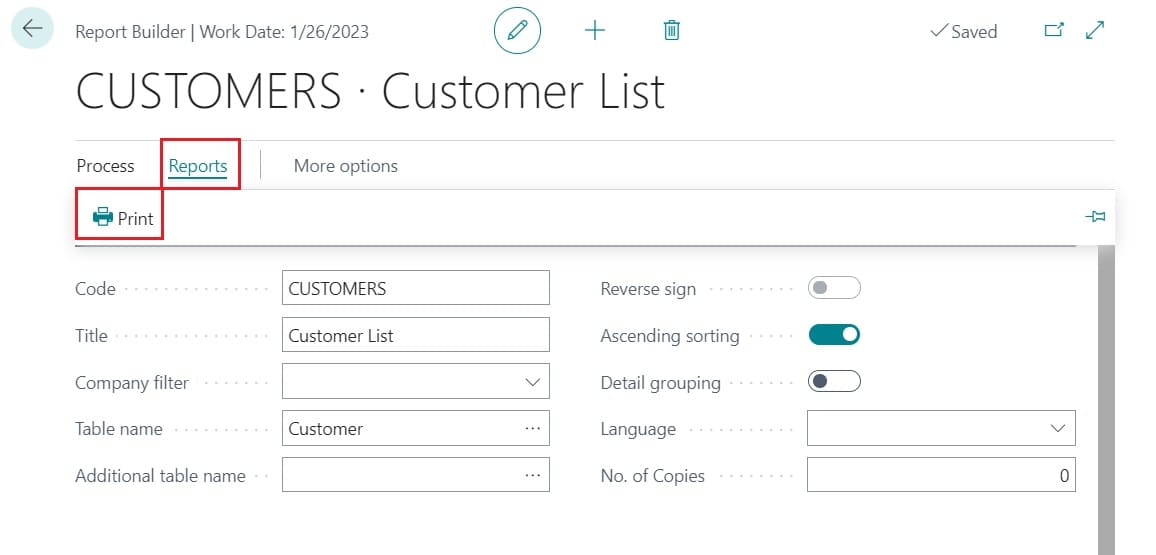
Key Usage Scenario. Report Builder.
This document contains specific instructions on running through the key usage scenario for Report Builder in VisionCore.
After installing VisionCore, start the below steps.
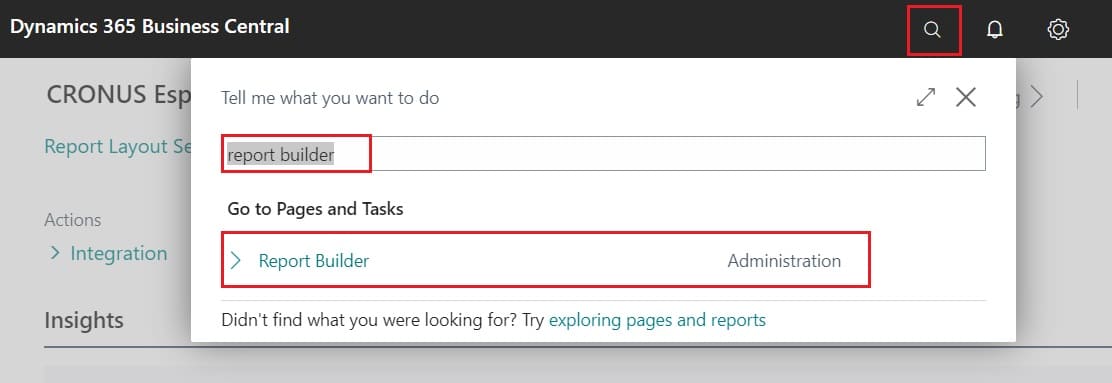
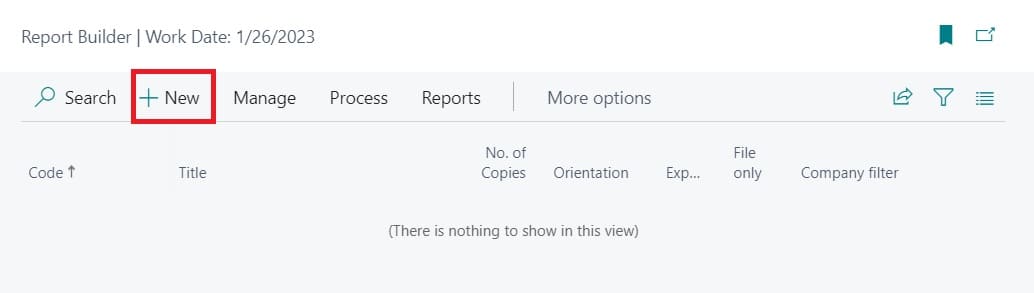
Step 1: Create a new report
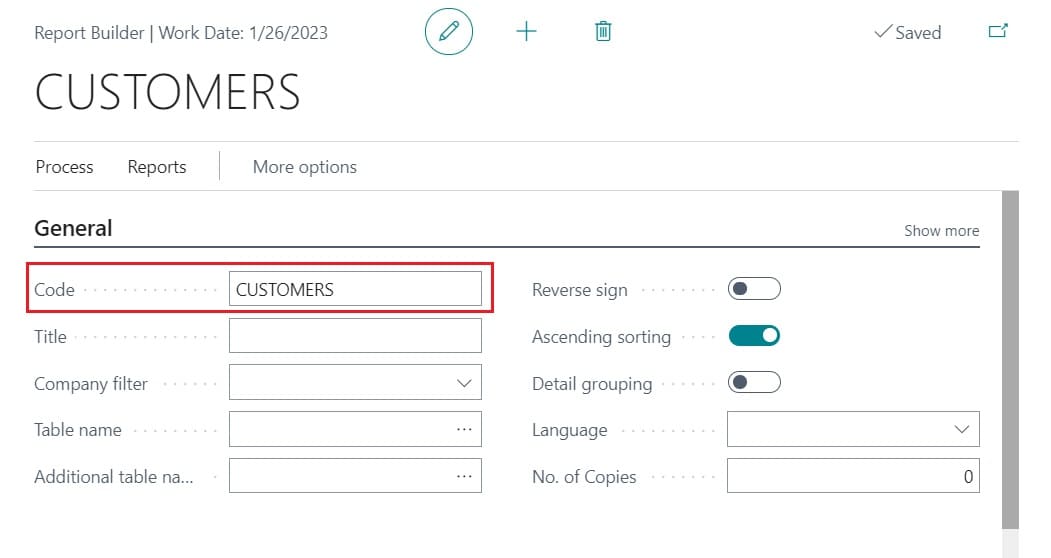
Create a new report from the Report Builder list and give it a code. The chosen code is not relevant for this test.
Step 2: Set report title
Enter a title for the report and select the company from which you want to obtain the data.
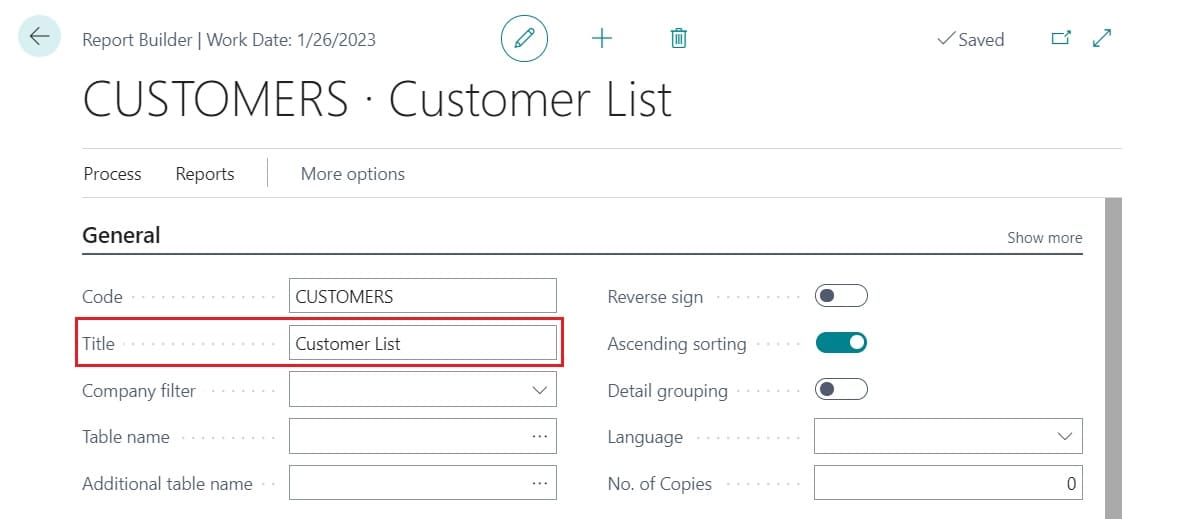
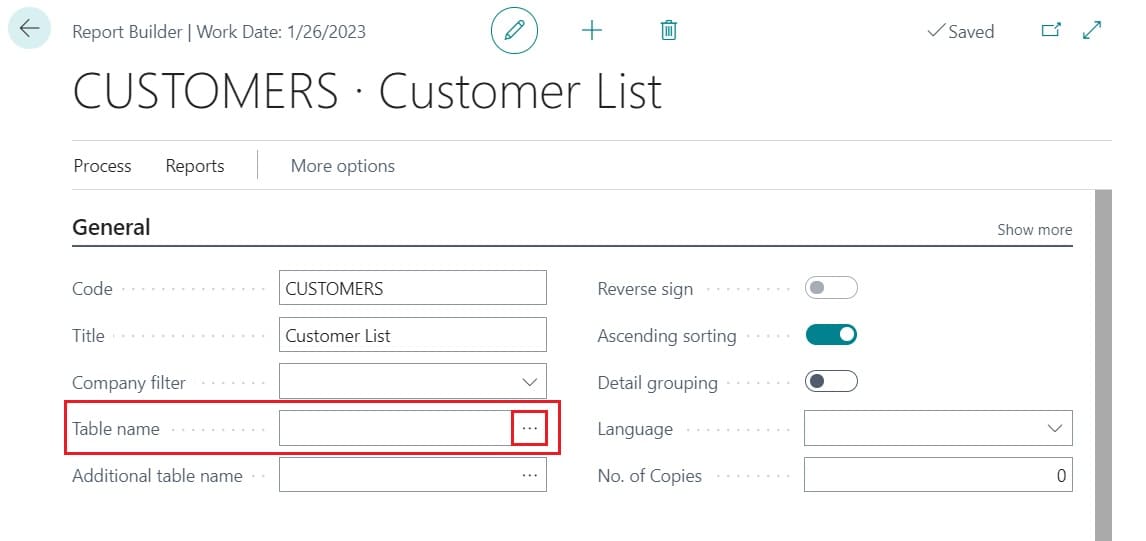
Step 3: Set data source
Select the data source of the report from the "Table Name" field.
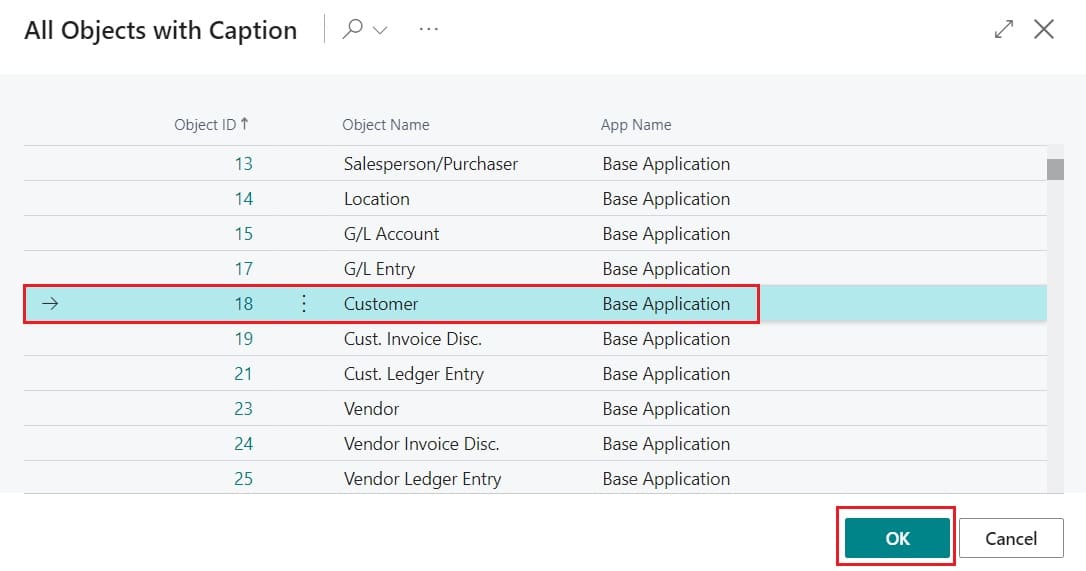
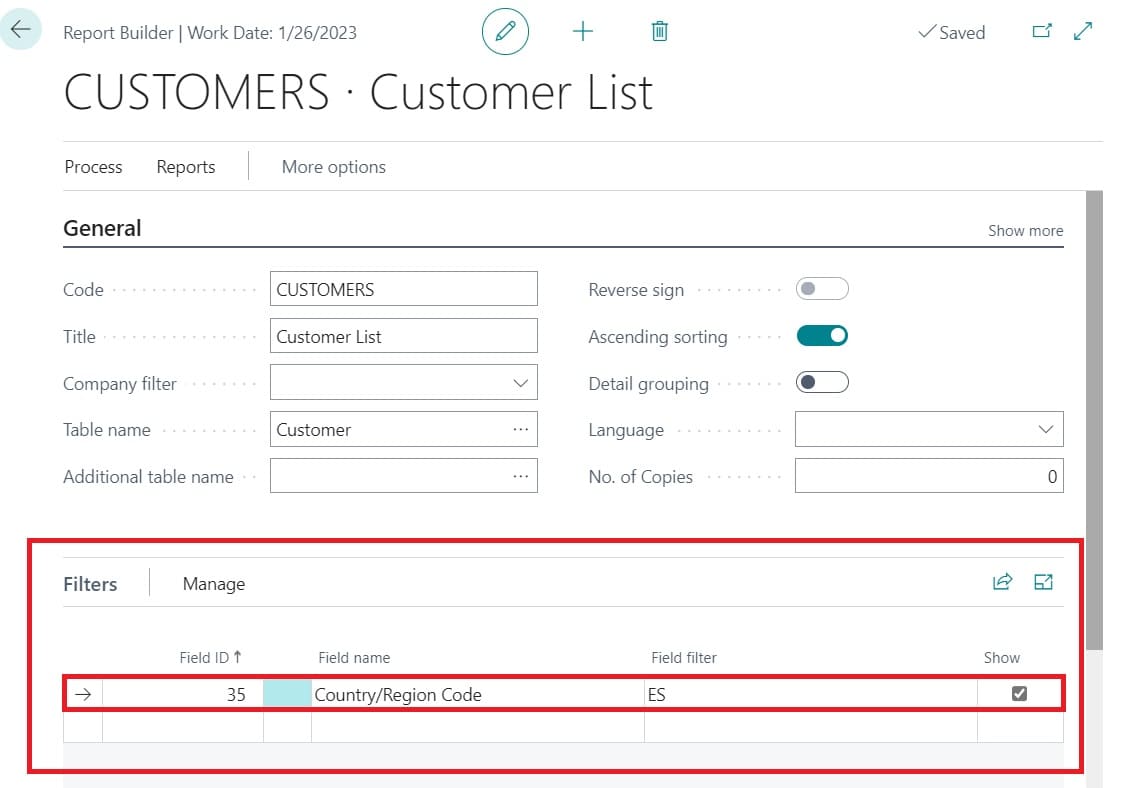
Step 4: Set the report filters
Set the report filters by selecting the fields and the corresponding value.
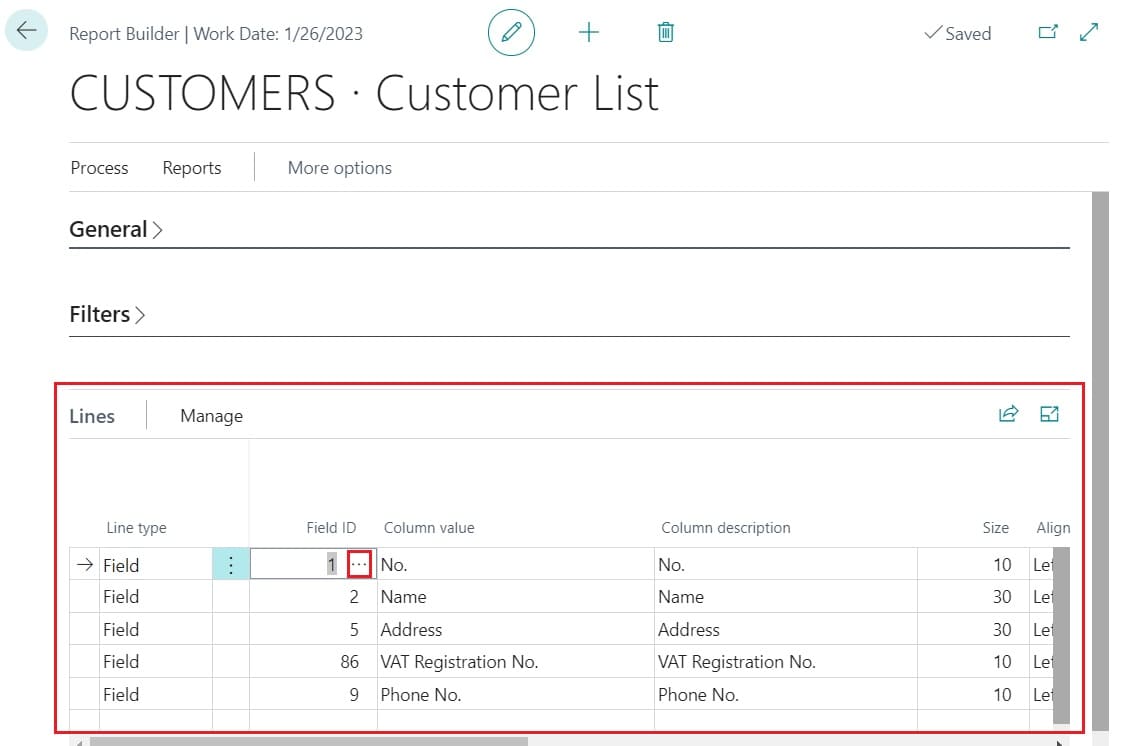
Step 5: Set the report columns
Select the fields from the table that you want to include in the report.
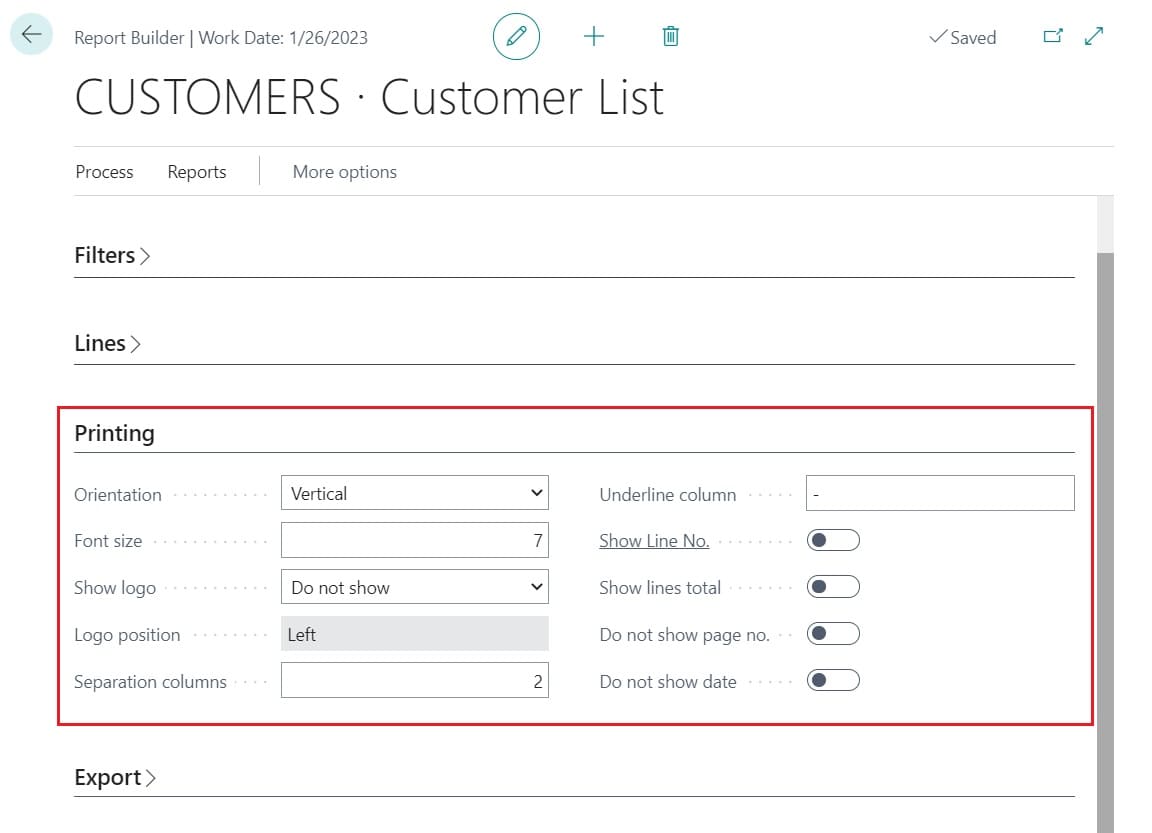
Step 6: Set print parameters
Set the printing parameters: orientation, font size, column separator...
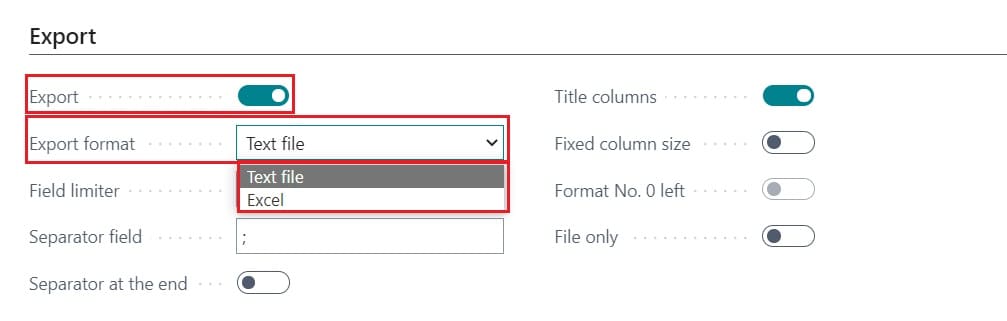
Step 7: Export data to file (Optional)
Export the report data to a text file or an Excel sheet.
Step 8: Print report
Print, send or preview report from page actions (Print).